
This article explains how to use the advanced password module.
If you have the advanced password module installed, there are some differences to the standard password change process.
You must change your password every 90 days. You will be reminded of this 10 days before your password expires.
These steps can also be followed if a collegue has forgotten their password and have asked you to reset it for them.
Navigate to 'Users', find the person you want to reset and press 'Change password'
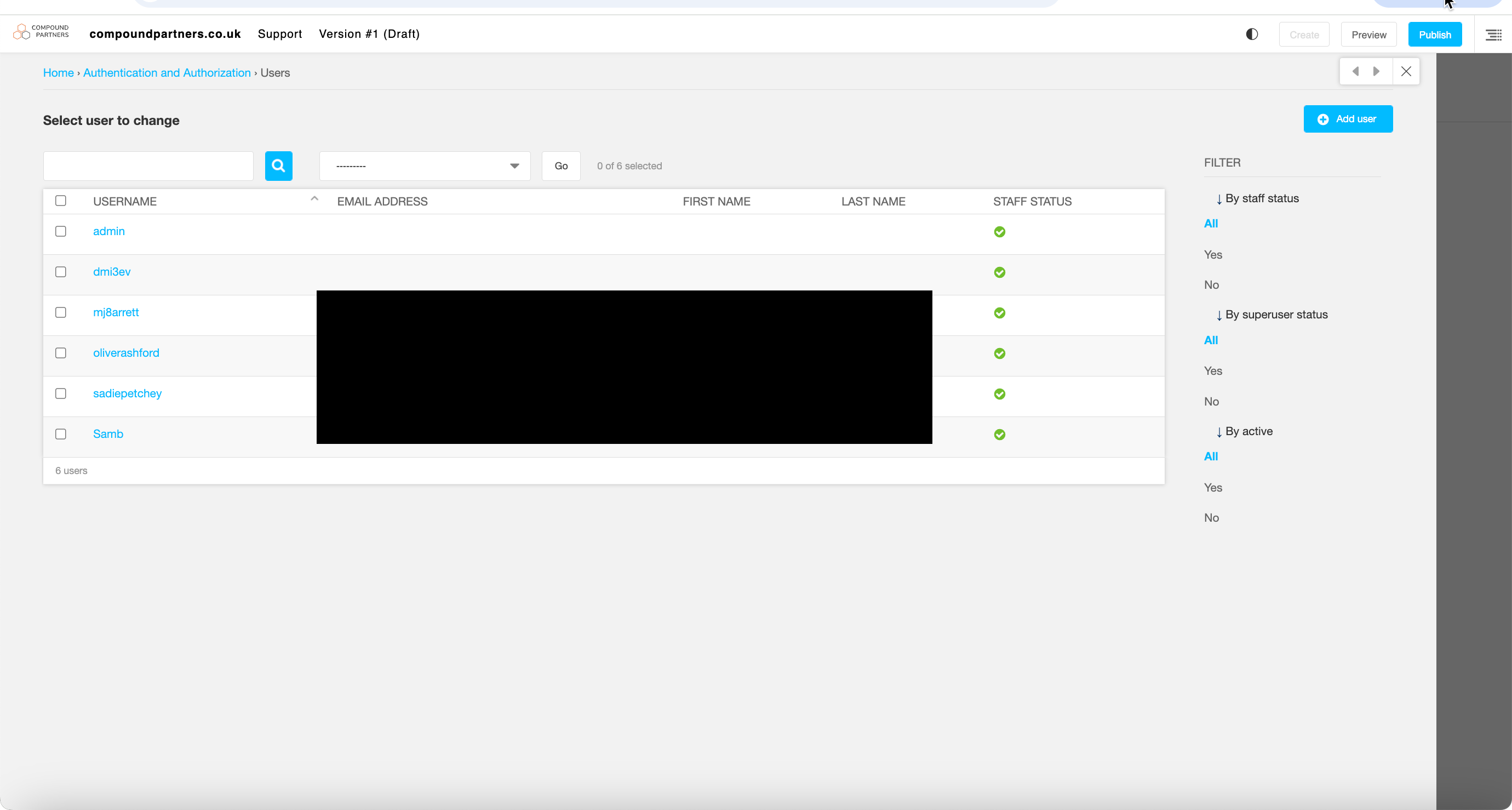
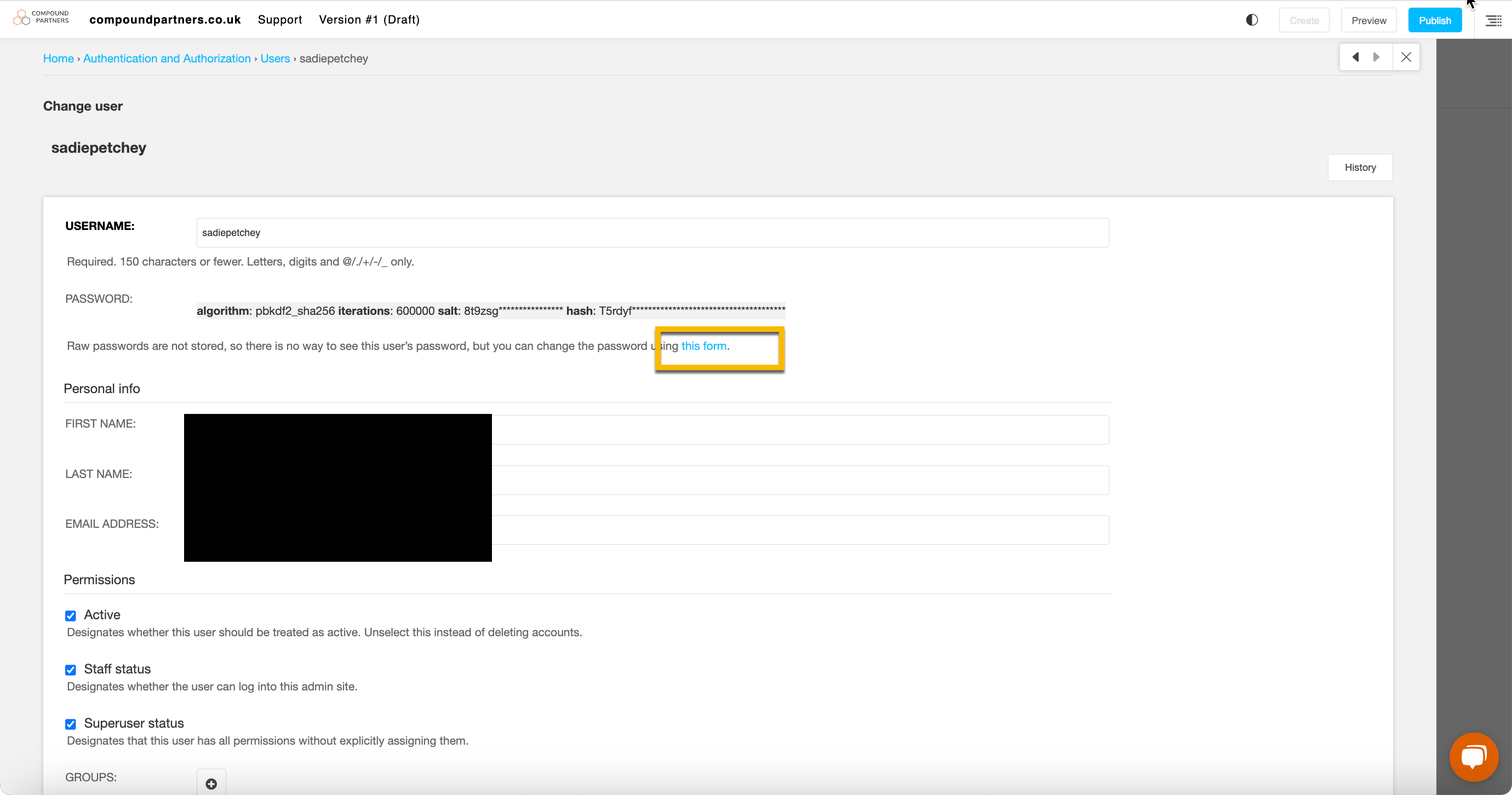
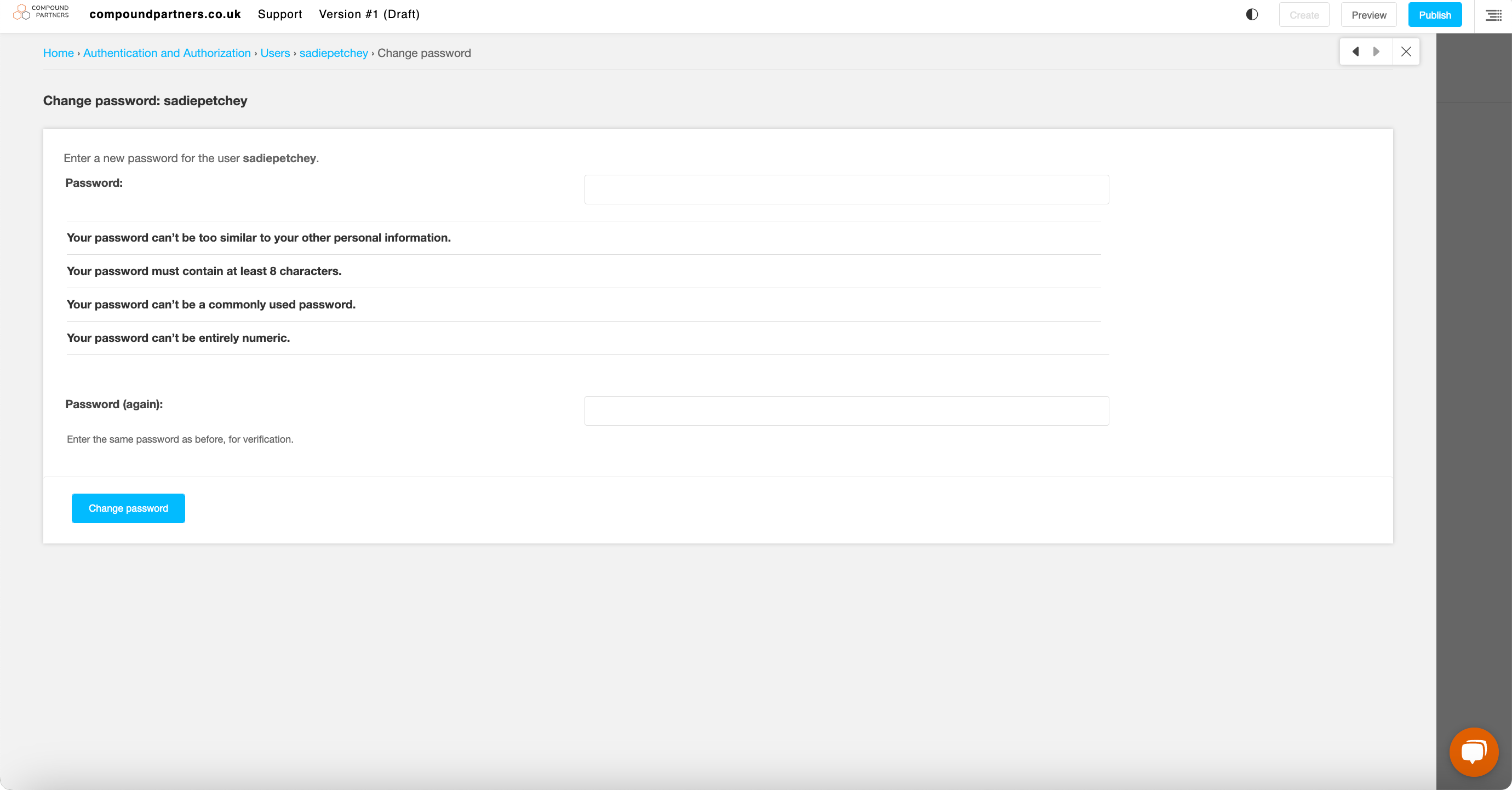
Create your new password
The new password you create must adhere to the following:
- Commonly used passwords are not allowed
- Minimum password length = 12 characters
- At least one upper case letter
- At least one lower case letter
- At least one number
You must enter your old password and new password, as well as confirming your password at the bottom of the screen to make sure they match.
Looking for help with something else?
If there isn't a support guide on the topic you're looking for, tell us what you're trying to do and we'll write one. Most guides on this page started as a request from an editor, so if you've hit a gap, someone else probably has too.
Troubleshooting