
This article explains how to use an image plugin.
It will explain how to add an image to your page or article.
How to add an image:
Step 1: In the structure menu, press the '+' and select the image plugin.
Step 2: Select the image from your folders or drag one from your computer to the image selection frame.
You can also choose to add an external image via its URL
You can also determine the parameters in the plugin:
- Responsive: adaptation of the image to all screen formats
- Rounded: rounded edges of the image
- Thumbnail: adaptation of the image as a thumbnail
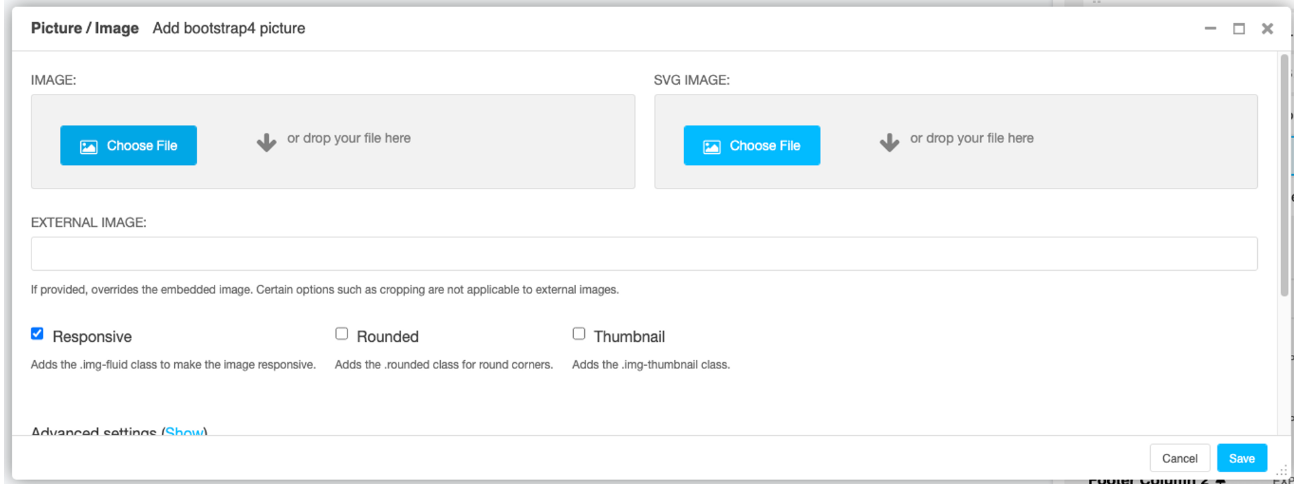
If you view the advanced settings, you will be able to set the alt attribute of your image. This is something especially useful for your SEO, since search engines cannot interpret your images.
So, make a short description of your image containing the keywords. This description will be used by search engines and software to read your site for the visually impaired.
Looking for help with something else?
If there isn't a support guide on the topic you're looking for, tell us what you're trying to do and we'll write one. Most guides on this page started as a request from an editor, so if you've hit a gap, someone else probably has too.
Plugin guidance