
Adding HTML autocomplete tokens enables browsers and password managers to understand the purpose of form fields, enhancing user experience by automatically filling in data like names, addresses, and credit card numbers. It reduces typing effort, assists users with dexterity disabilities, and improves security by promoting the use of stored, accurate information
Where to set this in JUMPSuite
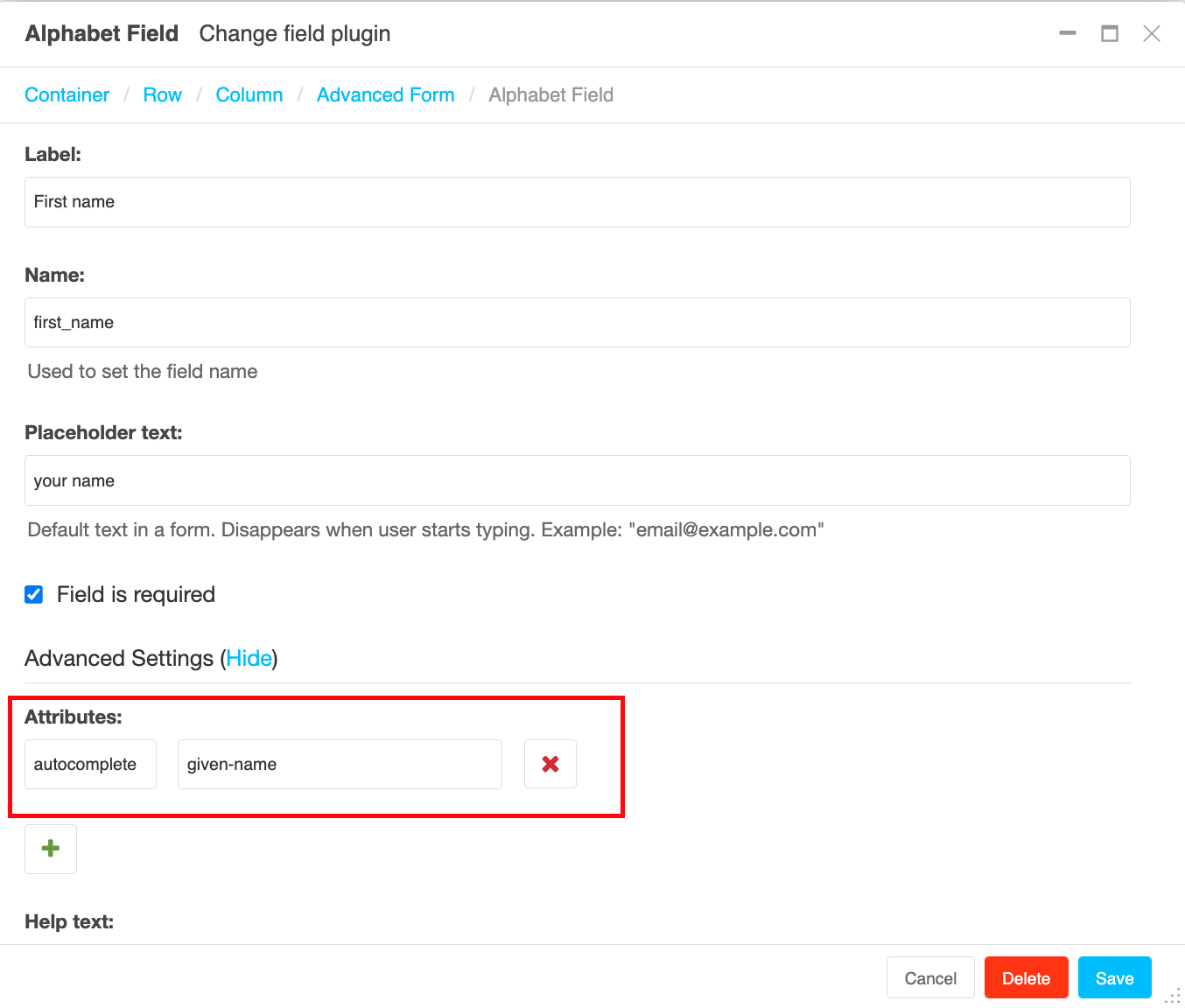
Use the Advanced Form plugin. When you add or edit a field (Alphabet Field, Email Field, etc.), scroll down and click Advanced Settings to reveal the Attributes section. Add a new attribute row with:
- Key:
autocomplete - Value: the token from this guide (e.g.
given-name,email,postal-code) Click the green + to add more attributes if needed, then Save. The attribute is rendered directly on the underlying<input>,<textarea>, or<select>so browsers and password managers can read it.
Tokens are lowercase, space-separated, and case-insensitive.
Example placement:
On / off
| Value | Use for |
|---|---|
on |
Allow autofill, let the browser decide what to suggest |
off |
Don't autofill. Use sparingly, mainly for CAPTCHAs or fields the browser shouldn't touch. Note: most browsers ignore off on login fields so password managers still work |
Names
Prefer the single name token unless you genuinely need the parts separately; it handles the full range of how people's names are structured.
| Token | Use for |
|---|---|
name |
Full name (preferred) |
honorific-prefix |
Mr, Mrs, Dr, etc. |
given-name |
First name |
additional-name |
Middle name |
family-name |
Last name |
honorific-suffix |
Jr, PhD, etc. |
nickname |
Nickname or handle |
username |
Account username |
Login & authentication
| Token | Use for |
|---|---|
current-password |
Existing password field on a login form |
new-password |
New password on signup or password-change forms (stops browsers autofilling the existing one) |
one-time-code |
OTP codes sent by SMS or email |
webauthn |
Passkey / Web Authentication prompts. Always the last token in the list |
Contact - email, phone, IM
| Token | Use for |
|---|---|
email |
Email address |
tel |
Full phone number including country code (preferred) |
tel-country-code |
e.g. +44 |
tel-national |
Phone number without country code |
tel-area-code |
Area code |
tel-local |
Local number (can split further into tel-local-prefix and tel-local-suffix) |
tel-extension |
Extension, suite, or room number |
impp |
Messaging protocol URL, e.g. xmpp:user@example.net |
Phone and messaging tokens can be prefixed with home, work, mobile, fax, or pager (e.g. autocomplete="work email").
Addresses
Prefer street-address when you have a single multi-line address field. Only use address-line1 / 2 / 3 if you're splitting into separate inputs.
| Token | Use for |
|---|---|
street-address |
Full street address (multi-line) |
address-line1 |
First line of street address |
address-line2 |
Second line |
address-line3 |
Third line |
address-level1 |
Broadest admin level. UK: county. US: state |
address-level2 |
Next level down. UK: post town. US: city |
address-level3 |
Third level (rarely used in UK/US) |
address-level4 |
Fourth level (rarely used) |
postal-code |
Postcode / ZIP code |
country |
Country code (e.g. GB) |
country-name |
Country name (e.g. United Kingdom) |
UK address mapping quick reference
For a typical UK address form:
- House number + street →
address-line1 - Locality (if shown) →
address-line2 - Post town →
address-level2 - County →
address-level1 - Postcode →
postal-code
Organisation
| Token | Use for |
|---|---|
organization |
Company or organisation name |
organization-title |
Job title |
Payment card fields
| Token | Use for |
|---|---|
cc-name |
Name on card (preferred over splitting) |
cc-given-name |
First name on card |
cc-additional-name |
Middle name on card |
cc-family-name |
Surname on card |
cc-number |
Card number |
cc-exp |
Expiry (MM/YY or MM/YYYY) |
cc-exp-month |
Expiry month only |
cc-exp-year |
Expiry year only |
cc-csc |
CVC / security code |
cc-type |
Card type (Visa, Mastercard, etc.) |
transaction-currency |
Currency for the payment |
transaction-amount |
Amount to charge |
Other personal details
| Token | Use for |
|---|---|
bday |
Full birth date |
bday-day |
Day of month |
bday-month |
Month |
bday-year |
Year |
sex |
Gender identity (free text) |
language |
Preferred language (BCP 47 tag) |
url |
Website or homepage URL |
photo |
URL of a photo |
Grouping tokens (prefixes)
Use these at the start of the token list when a form collects the same type of data twice, typically shipping and billing.
| Token | Use for |
|---|---|
shipping |
Field belongs to a shipping address |
billing |
Field belongs to a billing address |
section-* |
Custom group name (e.g. section-primary, section-guest). Must start with section- |
Combine them: autocomplete="shipping postal-code", autocomplete="billing cc-number", autocomplete="section-user1 billing postal-code".
Accessibility note
Using the correct tokens meets WCAG 2.2 Success Criterion 1.3.5 (Identify Input Purpose, Level AA). Assistive tech uses these values to help users understand and complete forms. Inventing non-standard tokens to "disable" autofill fails this criterion. If you genuinely need to disable autofill on a specific field, use autocomplete="off" on that field only.
Looking for help with something else?
If there isn't a support guide on the topic you're looking for, tell us what you're trying to do and we'll write one. Most guides on this page started as a request from an editor, so if you've hit a gap, someone else probably has too.
Plugin guidance