
This article explains how to add plugins.
Plugins allow you to display your content on the page. In the structure menu, you can add, modify or remove plugins from your page. A few main examples of plugins would be text, images, videos, links and buttons.
How to add a plugin:
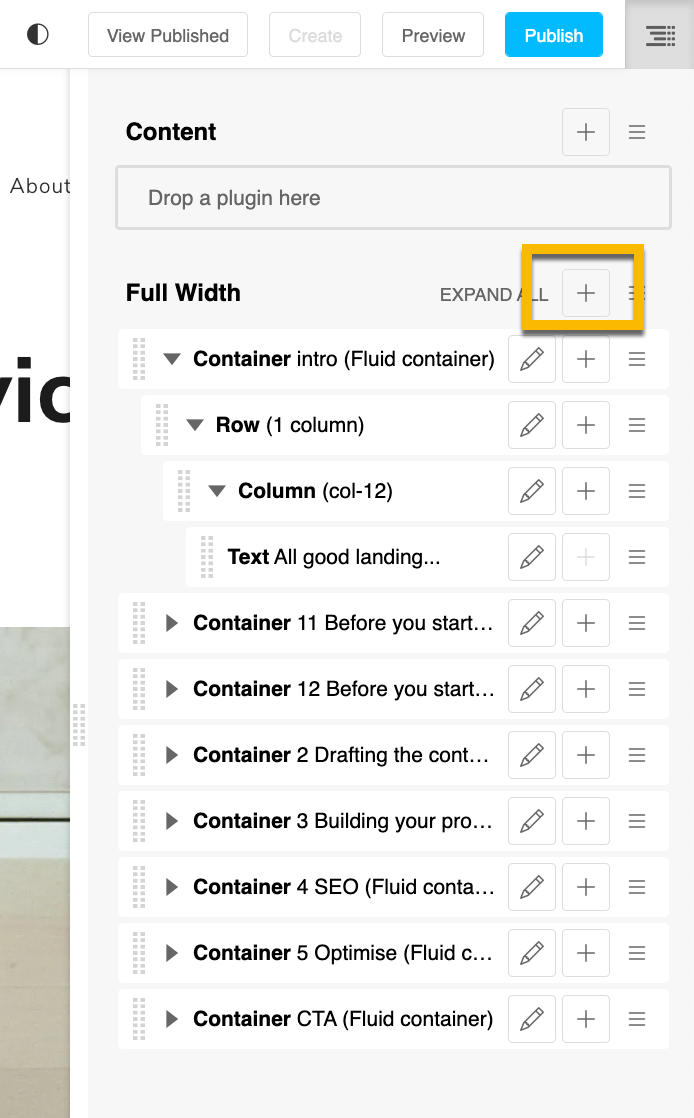
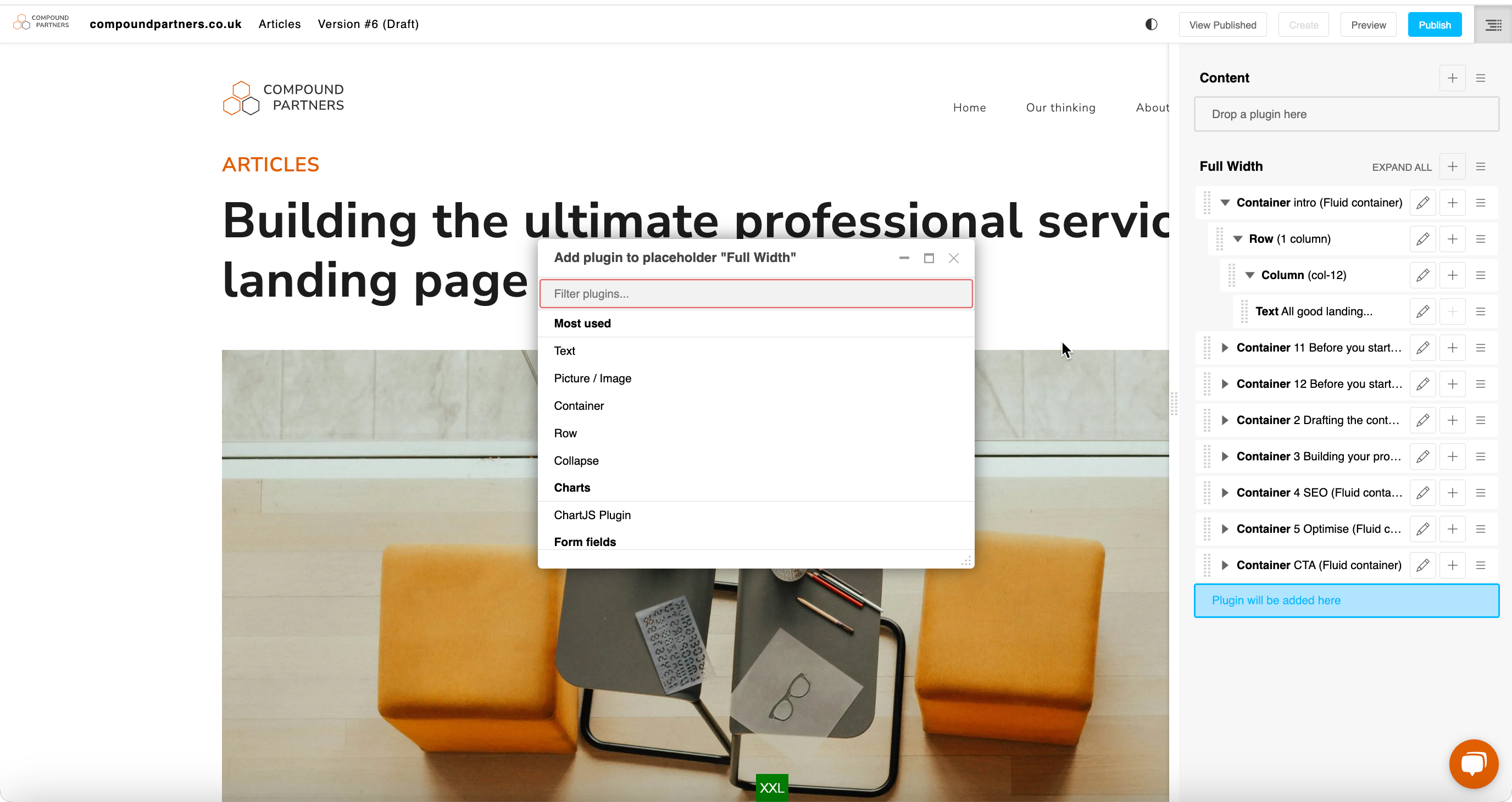
Step 1: Press the '+' button in the area in the sidebar you would like to add the content
A search bar will appear for you to search for the plugin that you want to add to the page.
Within the plugin, there are many editorailly controllable elements such as titles, colours and layouts.
Step 2: Edit the plugin
This will work differently for every plugin and depends on what you are trying to create.
What is a nestable plugin?
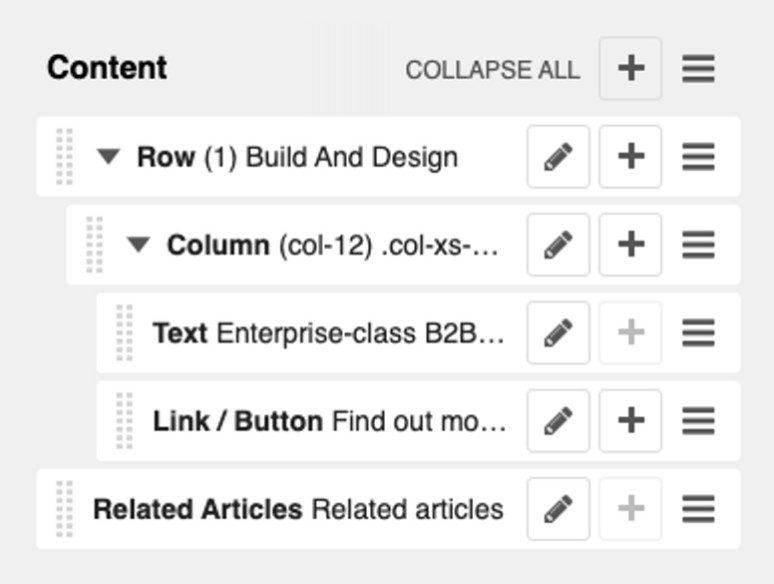
Some plugins are nestable. This means they can live inside of each other on the page. For example, a column is nested inside a row, a text plugin is nested inside a column etc.
Looking for help with something else?
If there isn't a support guide on the topic you're looking for, tell us what you're trying to do and we'll write one. Most guides on this page started as a request from an editor, so if you've hit a gap, someone else probably has too.
Plugin guidance