Working with dynamic content
Creating an 'Article': front-end editing

This is how you input front end plugins.
Follow these steps in order to add the front end plugins.
Each article will look different and not all plugins will be necessary.
Step 1: Click and open the hamburger menu
Click on the hamburger menu opener in the top right corner to reveal the plugins

Step 2: Press the + button to add plugins
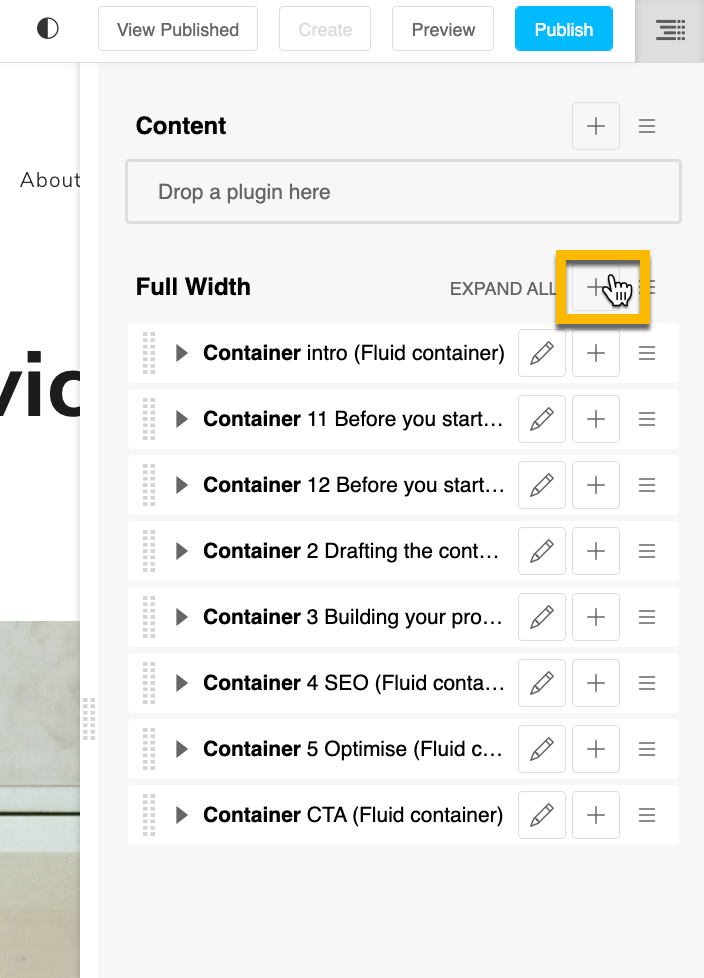
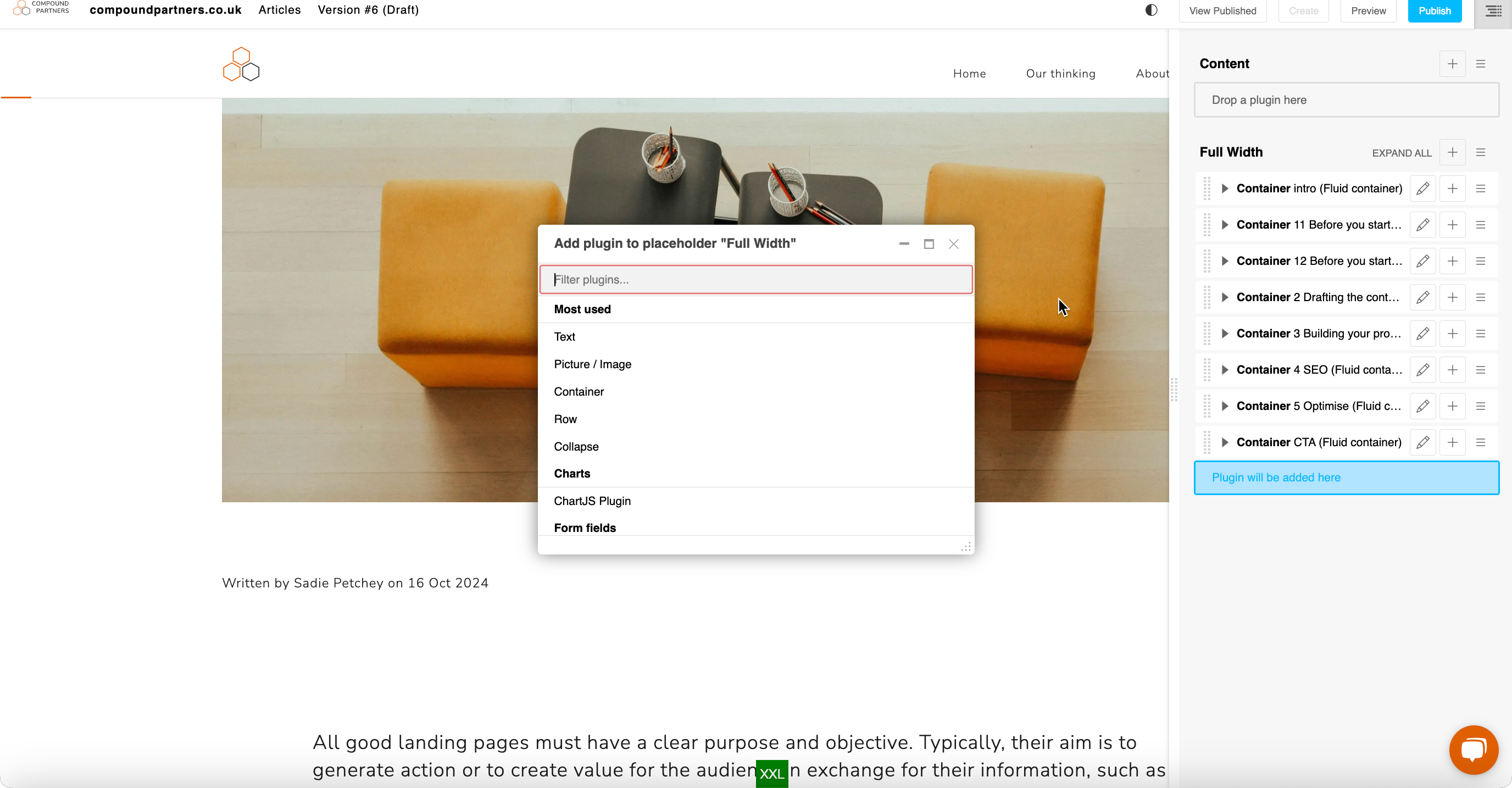
You can add plugins such as text and images here, just press the + to reveal the drop down and search for the plugin you would like to use
Type your text or upload your images
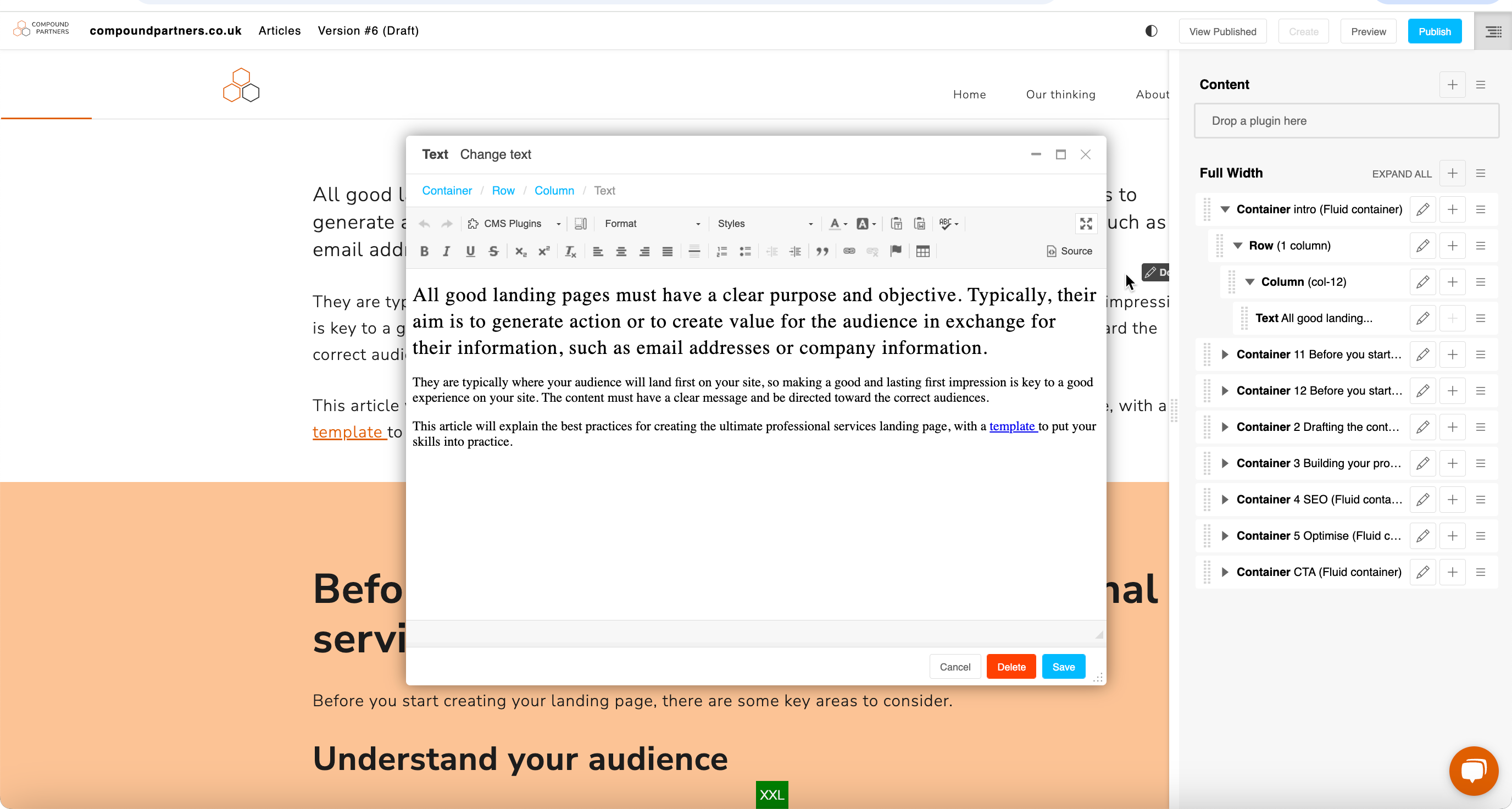
When you are finished editing, press save and the plugin will appear on the page.
To `edit` the plugin again, press the `pencil` tool
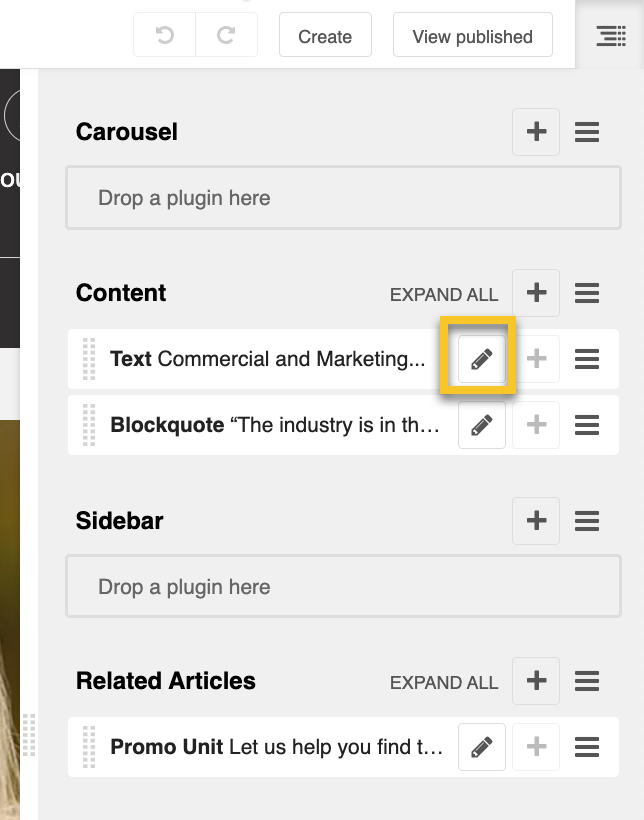
To move the plugins, you can drag them if you would like to change the order.
Looking for help with something else?
If there isn't a support guide on the topic you're looking for, tell us what you're trying to do and we'll write one. Most guides on this page started as a request from an editor, so if you've hit a gap, someone else probably has too.
Working with dynamic content