
This article will explain how to add redirects to your site.
You can use them when a page no longer exists to link the user to another page.
How to set up a redirect:
Step 1: Identify the URL you wish to redirect and identify the URL you want to redircet the user to.
For example, if you want to redirect /about/ to /about-us/
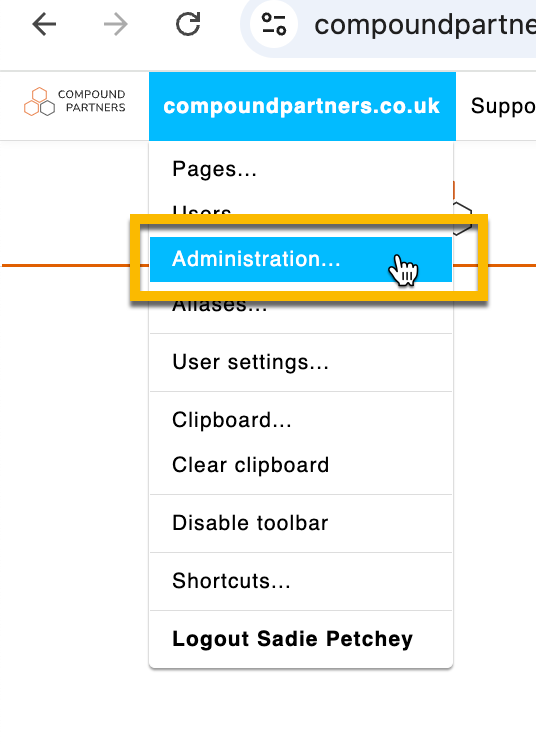
Step 2: Enter the back end system and find redirects in your administration navigation.
Redirects may be quite far down the listing in the administration back, so make sure you look carefully.
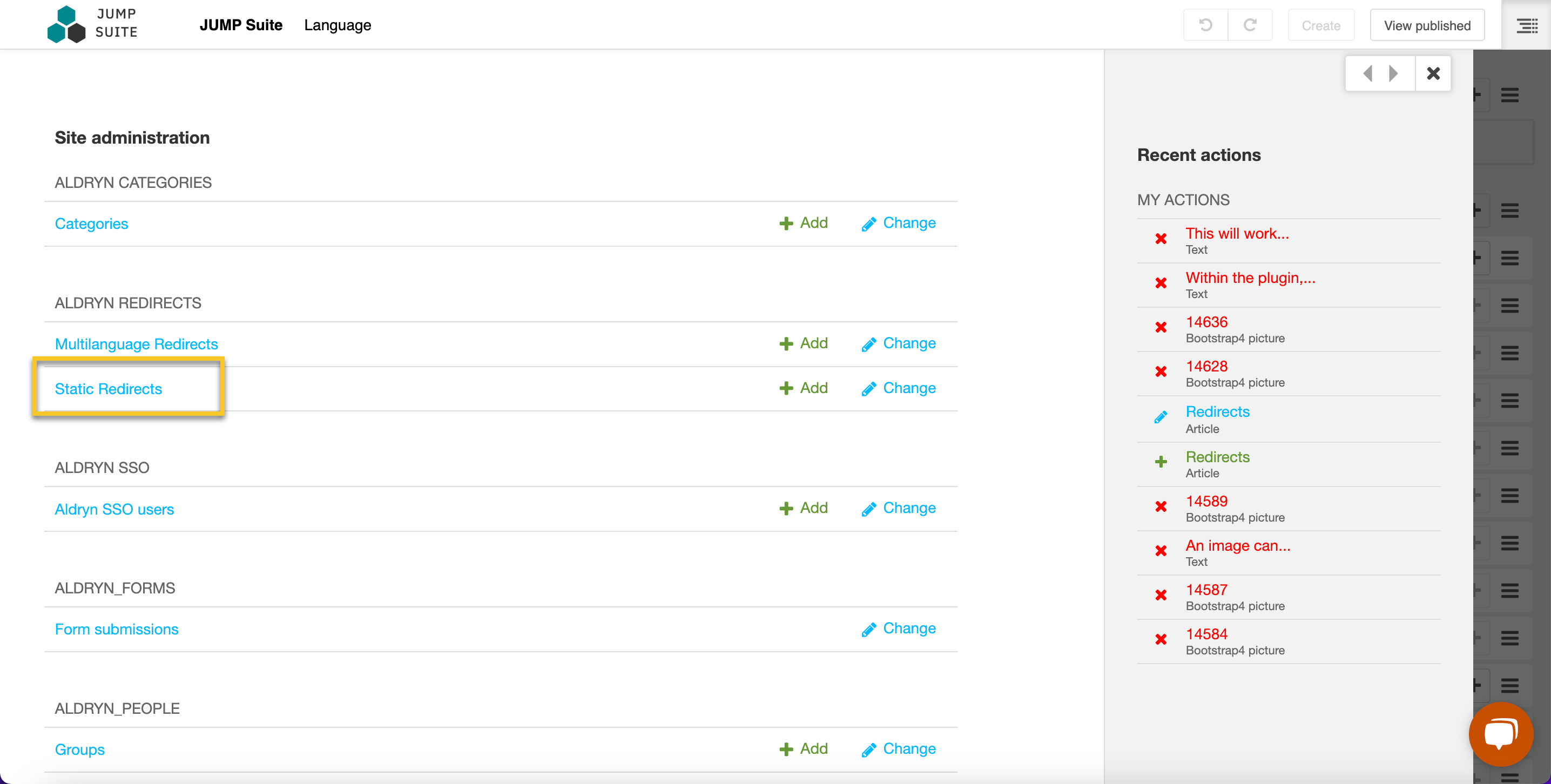
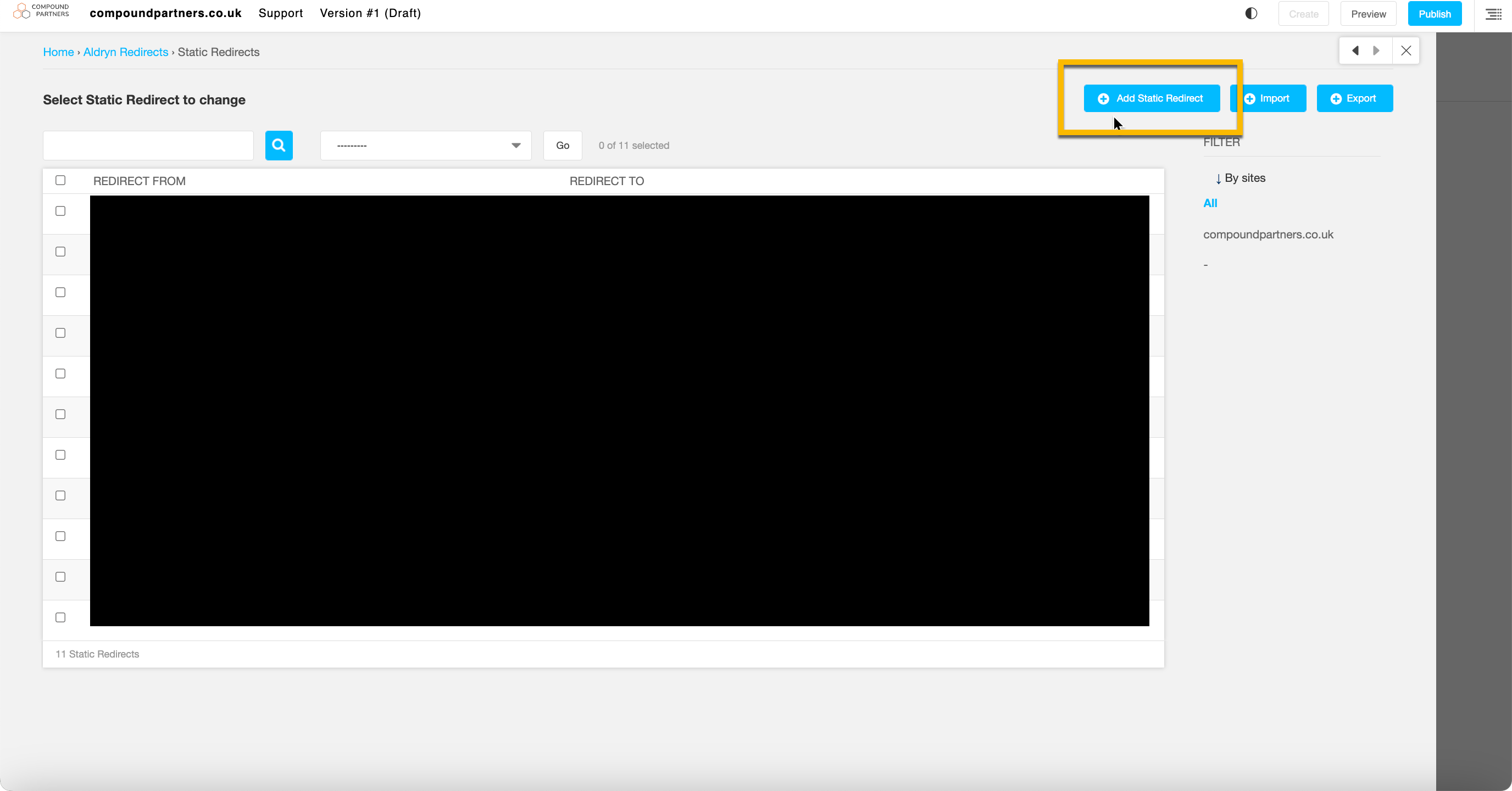
Step 3: Add a new static redirect
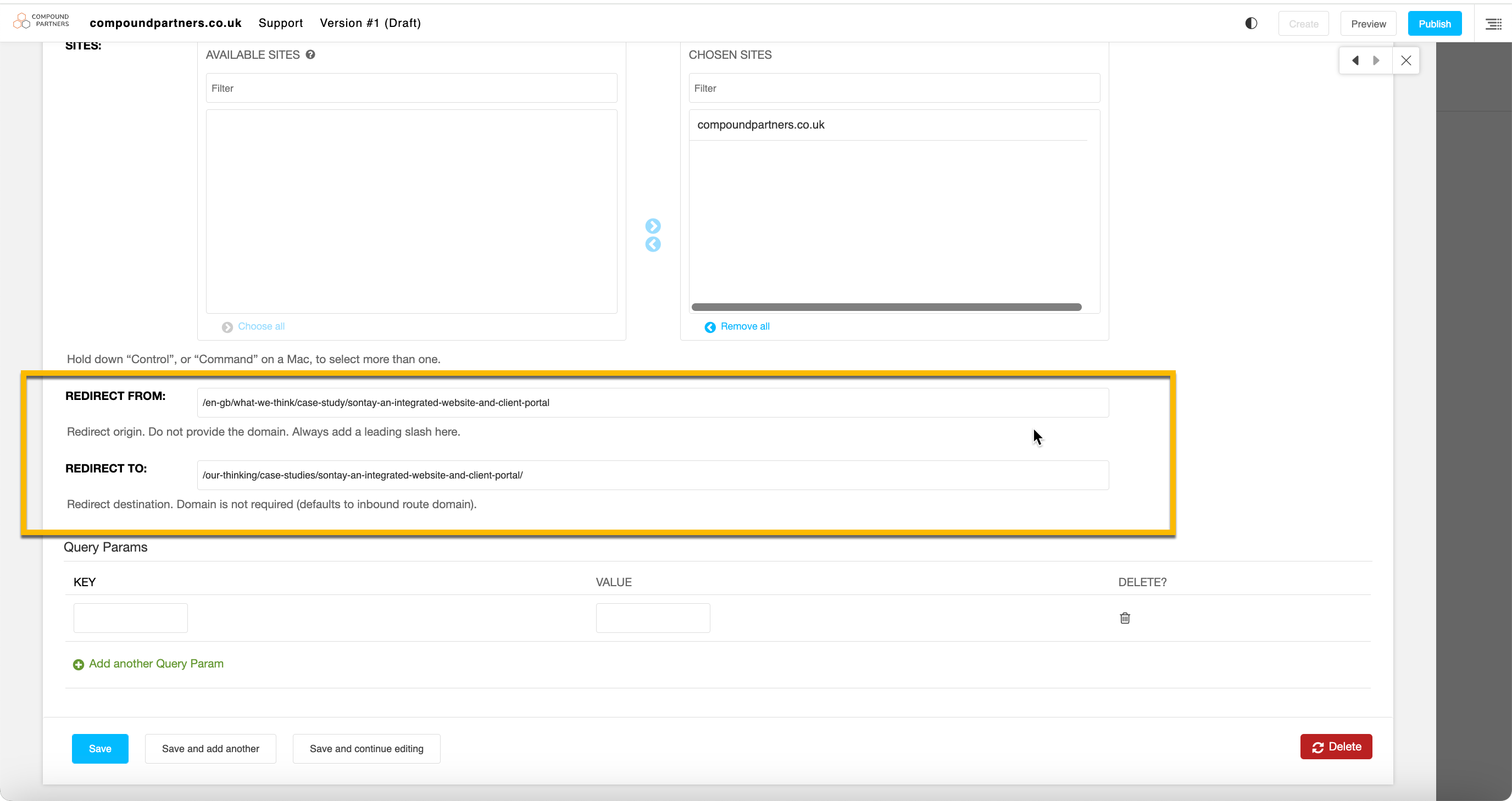
Step 4: Input the original link into the 'redirect from' panel, and input the new link into the 'redirect to' panel.
Make sure to remove the '/' from the end of the original link, and make sure your new link begins and ends with a '/'.
Step 5: Press Save
You can test it out by searching for the original URL and ensuring it redirects you to the new page.
Looking for help with something else?
If there isn't a support guide on the topic you're looking for, tell us what you're trying to do and we'll write one. Most guides on this page started as a request from an editor, so if you've hit a gap, someone else probably has too.
Advanced modules