
The Media library allows you to access all your files, folders and images on your site.
By accessing it, you will be able to modify the titles, alt tags, captions and other information of your images, and also manage your folders and files.
How to use a the Media Library:
Step 1: Accessing the Media Library
To manage the files, look for the Filer section and click on "Folders"
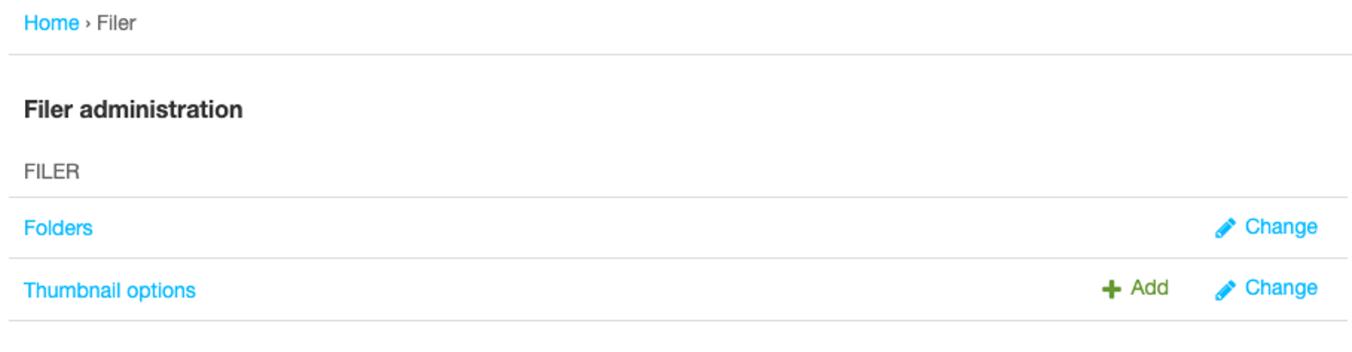
Description of the Media library
All folders on the site are displayed like this:
The grey "unsorted uploads" file contains all the images that do not belong in a folder and have been directly uploaded to a CMS page or a blog post.
The blue folders contains all picture folders. You can manage all folders, add and delete them.
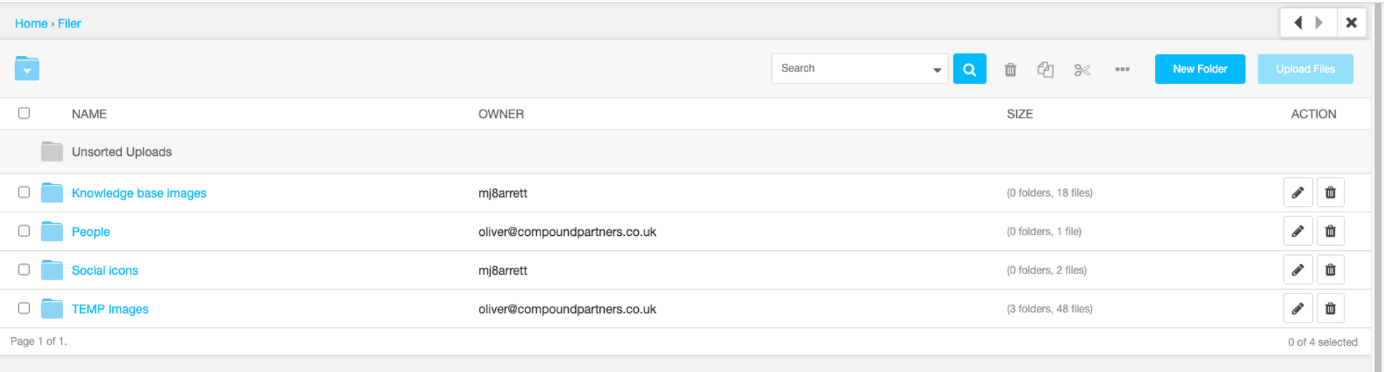
When you select a folder or file, the clipboard management icons become accessible. From left to right, the icons allow the following actions on the folder or file:

- Delete
- Copy
- Cut
- allows you to resize/rename the image or file
Files
In the list of files, you can see these columns:
- Checkboxes (select/deselect a file or folder)
- An icon of the image (or folder)
- The name of the image (or folder)
- The owner of the image/folder (usually the person who hosted/created it)
- The size (in number of sub-folders & files for folders, in kb & resolution for images)
- Action buttons (edit or delete)

Important!
Before deleting a folder or an image, make sure that the contents of the folder or the image are not used on your site. If, for example, you delete an image while it is present in an article, it will disappear from this same article.
Updating a file
Instead of deleting an image or file, update it in the back so everywhere that the image currently exists on the site will be replaced by the new image.
Step 1: Navigate to the file you want to update
Find the file, open it, and scroll down to 'Advanced settings'
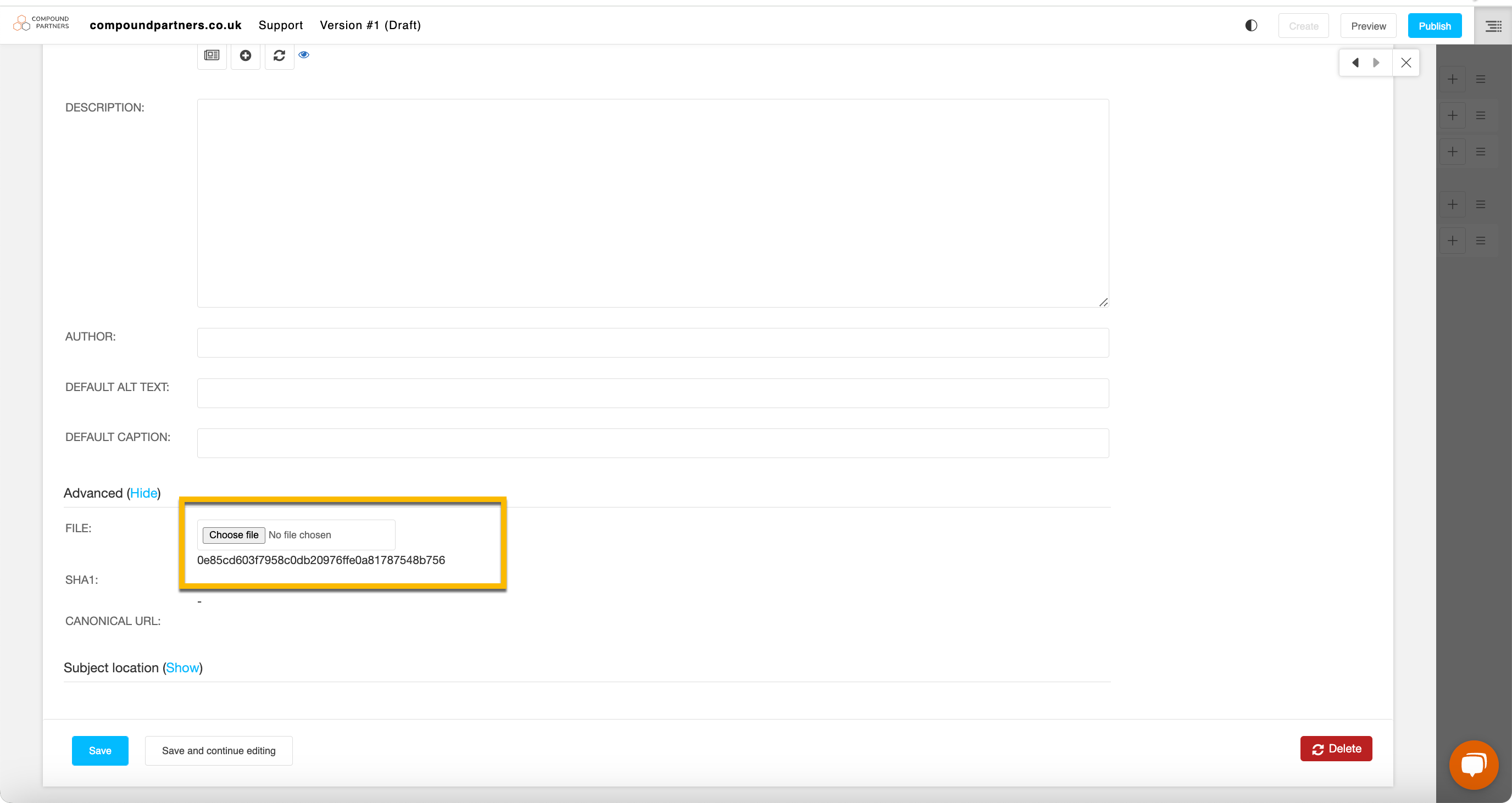
Step 2: Press 'Choose file' and select the file you wish to replace the old file with.
Press save, and the updated image or file will be present on the site.
Looking for help with something else?
If there isn't a support guide on the topic you're looking for, tell us what you're trying to do and we'll write one. Most guides on this page started as a request from an editor, so if you've hit a gap, someone else probably has too.
Admin interface